Yes — a monitor stand is genuinely good for posture, but only when it does one specific thing: it raises the top edge of your screen to your seated eye level. Anything lower than that and the body of evidence is unambiguous: your head tilts forward, your shoulders round to follow it, and the cervical load on your upper back doubles to triples within fifteen minutes. The right monitor stand is not a luxury accessory; it is the single least expensive piece of ergonomic equipment with the highest measurable return on your neck, your upper back, and your eye comfort. This guide explains exactly when a stand helps, when it does not, and how to choose one that actually fits your body — not just your desk.
This article is the deep-dive companion to our pillar guide on building an ergonomic desk setup. If you have not yet read that one, start there for the full picture of chair, desk, screen, keyboard, and light. Come back here when you want to know whether the screen-height fix is the right one to prioritize.
The short answer in one paragraph
A monitor stand improves posture by removing the largest postural distortion most desk workers experience: the forward head tilt that comes from looking down at a screen all day. When the top of the monitor sits at eye level, your head balances naturally on top of your spine, your shoulders fall into their relaxed position, and the muscles of the upper back stop holding the dead weight of a forward-leaning skull. The improvement is not subtle: the cervical load drops from roughly 27 to 40 pounds (in flexion) back to the natural 10 to 12 pounds. People who get this right typically report less neck stiffness within five working days and noticeably less shoulder tension by the end of the second week.
What the postural science actually says
The cervical spine evolved to balance a 10 to 12 pound (4.5 to 5.4 kg) skull directly over the shoulders. Kenneth Hansraj's widely cited 2014 paper in Surgical Technology International quantified what happens when the head tilts forward to read a low screen: at 15 degrees of flexion the effective load roughly doubles to 27 pounds; at 30 degrees it triples to 40 pounds; at 60 degrees — the angle of a laptop on a low desk — it climbs to 60 pounds. NIOSH, the Mayo Clinic, and Cornell's Human Factors group all converge on the same recommendation: place the top of the screen at or just below seated eye level. A monitor stand of the right height is the simplest mechanical intervention that delivers this position automatically, without you having to think about your neck twelve times an hour.
The eye-level test you can do right now
Sit at your desk in your normal working posture. Close your eyes. Open them again, looking straight ahead — not down, not up, just naturally forward. The point your gaze lands on is your natural horizontal eye line. The top edge of your screen should sit within one or two inches of that line. If the top of the bezel is well below it — say, four inches or more — you are working in chronic neck flexion and a stand will help you. If the top of the bezel is well above it, your screen is too high (this happens with arms set wrong, not with stands) and you are working in chronic neck extension, which has its own problems. The eye-level zone is a small window, roughly 15 degrees above and below horizontal, and a stand exists specifically to put you inside it.
How a monitor stand fixes three postural problems at once
The forward-head posture is rarely a standalone problem. It cascades down the spine through the shoulders into the lower back, which means a screen that sits too low silently degrades three separate things at the same time. A stand of the right height undoes all three at once. This is part of why the return on a $30 to $80 wooden riser is so disproportionate to its price tag — you are buying back three musculoskeletal corrections with a single piece of timber.
Forward head tilt and cervical flexion
The first and most obvious correction is at the neck. When the screen is below eye level, the head moves forward in space to maintain a comfortable downward reading angle. Every inch the head moves forward of the shoulders adds roughly 10 pounds of effective cervical load, because the head becomes a longer lever pulling on the muscles at the base of the skull. Raise the screen and the head moves back over the shoulders automatically — no posture cue, no Pomodoro reminder, no conscious effort required. The trapezius and the suboccipital muscles stop firing at low-grade tension all day, and the chronic ache that lives between the shoulder blades begins to fade within the first week.
Shoulder rounding and thoracic kyphosis
The second correction is at the shoulders. A forward head almost always pulls the shoulders forward with it — the pectoralis muscles shorten, the rhomboids and middle trapezius lengthen and weaken, and the upper back rounds into the slumped C-shape that we all recognize in the mirror after a long day. The technical name is upper crossed syndrome, and it is the single most common postural pattern in office workers. Raising the screen reverses the cascade: with the head over the shoulders, the shoulders themselves drop back into their neutral position, the chest opens, and the upper back stops being asked to round all day. A walnut riser does for the thoracic spine what a $400 ergonomic chair tries to do for the lumbar one.
Lower back compensation and lumbar load
The third correction is at the lumbar spine — which sounds counterintuitive, since the back is six vertebrae below the screen. But the spine is a stacked column, and a forward-tilted head shifts the body's center of gravity forward of the hips. The lower back compensates by either flattening into a slump or arching aggressively to restore balance, both of which load the lumbar discs unevenly. Raise the screen, the head moves back, the center of gravity returns over the pelvis, and the lumbar muscles can stop firing as compensation muscles and go back to being supporting ones. The lower back ache that you have always blamed on your chair is, in roughly half the cases we see in ergonomic assessments, actually a referred consequence of a screen positioned two inches too low.
When a monitor stand does not help — and what to fix first
A stand is not a universal solution. There are three setups where adding a riser before fixing something else gives you very little — and one where it can make things slightly worse. It is worth being honest about these cases before you order any hardware, because the cost of the wrong intervention is not the price of the stand but the time you spend wondering why your neck still hurts.
If your chair is set wrong, fix the chair first
The chair determines your seated eye height. If the chair is too low, the screen needs to be lower; if the chair is too high, the screen needs to be higher. Most desk workers sit with the chair adjusted by feel rather than measurement, and most of those settings are wrong by an inch or two. Before buying a stand, set the chair: feet flat on the floor, knees at roughly 90 degrees, hips at 90 degrees, elbows at 90 degrees when the hands are on the keyboard. The chair is now at the right height for your forearms — and your seated eye height is whatever it is. Build the screen up from that fixed reference. A stand sized for a wrong chair will simply codify the wrong posture in wood.
If your screen is too far or too close
The eye-level rule works only inside the 20 to 28 inch (50 to 70 cm) viewing distance band. Closer than that, even a perfectly placed screen forces the eyes into sustained convergence and the head into a subtle forward lean to read smaller text. Farther than that, the eyes can stay comfortable, but the body leans in to read, which immediately undoes the screen-height work. If you find yourself leaning forward to read text, do not move the screen closer — that simply moves the convergence problem closer too. Instead, increase the font size or the system zoom level, keep the screen at 20 to 28 inches, and put the stand at the height your eye line actually needs.
If the desk itself is the wrong height
Most desks are built for a 5 ft 8 in to 5 ft 10 in user with a standard 17 to 19 inch chair. If you are significantly taller or shorter than that range, the desk itself becomes the limiting factor and no monitor stand can fully compensate. Shorter users often end up with the elbows too high and the screen too far away even when the riser is correctly sized. Taller users find the desk too low for proper forearm angle, and any stand tall enough to bring the screen to eye level makes the screen feel unreasonably close. A height-adjustable desk solves this completely; failing that, a thicker desk pad plus a taller stand is the realistic workaround. The rule of thumb: if you need more than 8 inches of stand to get to eye level, look at the desk first.
Monitor stand versus arm versus DIY — a decision matrix
Three things can lift your screen: a fixed riser (usually wood, sometimes metal), an articulating arm bolted to the desk, or a stack of books. They are not equivalent. Each one solves a different problem and creates a different tradeoff, and choosing the wrong one wastes the postural benefit you came for.
Fixed wooden riser — the right choice for 80 percent of setups
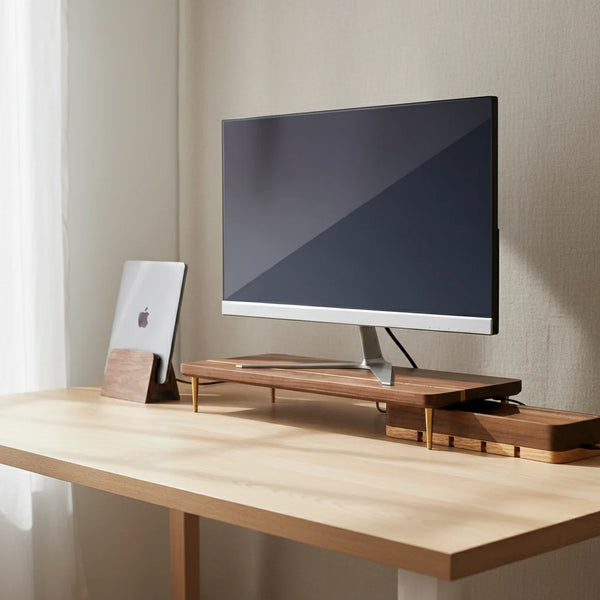
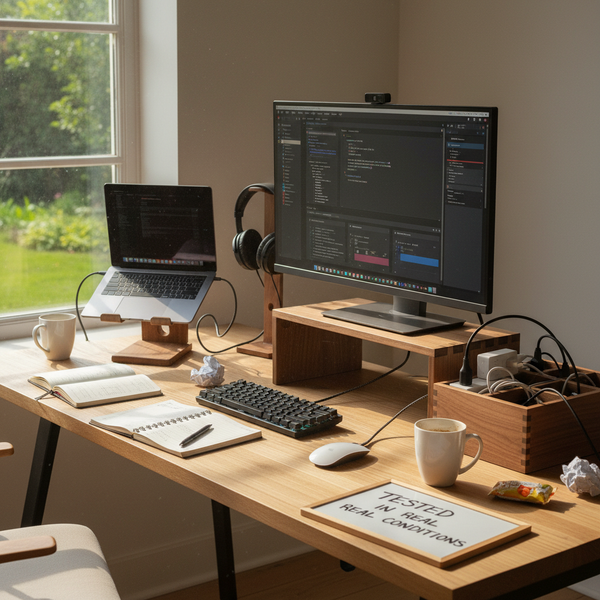
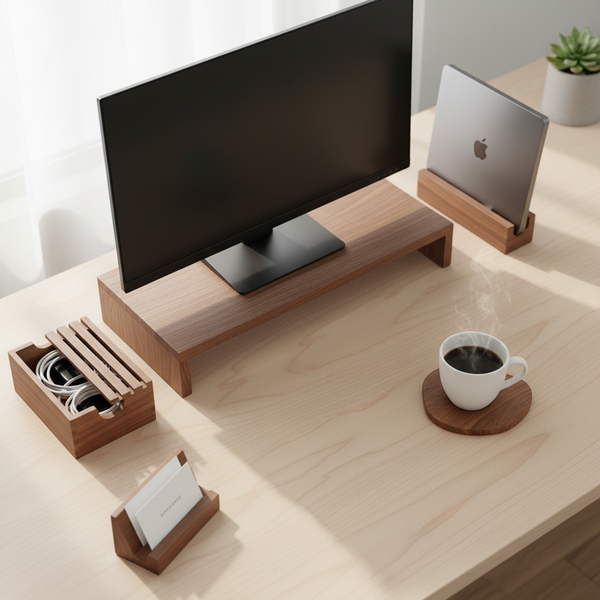
A fixed wooden riser is what most desk workers actually need. It places the screen at a single height — the right one — and it does not move. That is the feature, not a limitation. The vast majority of postural problems come from a screen being too low; once you fix that with a riser sized to your body, you do not want the screen drifting back down because someone bumped the arm. A solid walnut riser also adds storage space below for a keyboard, a small notebook, or the laptop you closed and tucked away. Our Walnut Splicing Wood Monitor Stand is the model we recommend for a standard 24-inch to 32-inch monitor on a standard desk; it adds 4.7 inches and supports up to 44 pounds.
Articulating arm — when you actually need motion
An articulating arm is the right answer in two narrow cases: you share the desk with someone significantly taller or shorter, or you genuinely shift between sitting and standing throughout the day. In either case, you need the screen to move with you. An arm gives you that, and a good one (counter-balanced, gas-spring) holds position cleanly without drift. The tradeoffs: arms cost three to ten times what a wooden riser costs, they require a desk edge sturdy enough to clamp to, and they can introduce micro-tilt that subtly degrades reading angle if not carefully adjusted. For a fixed seated setup at a fixed desk, the arm is over-engineered.
Stacked books and improvised stands — please do not
The stack of hardcover books under the laptop is a meme for a reason: it works mechanically. It is also unstable, ugly, and rarely the exact right height. Worse, the surface tilts forward by a degree or two as the books settle, which creates a subtle glare problem on glossy screens and a subtle alignment problem at the cervical spine. A $40 wooden riser is roughly the cost of the books, looks like furniture, and lasts longer than any of them. If you have ever found yourself rearranging the stack at 9 a.m. on a Monday morning because the pile shifted, you already know the answer.
Five wooden monitor stands worth considering
These are the five pieces from our desk accessories collection that solve the screen-height problem cleanly, ordered from "external monitor sits four inches too low" (the most common case) to "laptop user needs to bring a closed lid back into the workspace as a second screen." All five are solid walnut, hand-finished, and shipped with a small care card.

Walnut Splicing Wood Monitor Stand
Adds 4.7 inches (12 cm), supports up to 44 lb / 20 kg. The default choice for a 24"–32" monitor on a standard 29.5" desk. Built-in keyboard tuck-away below.
$59 Shop now →

Vertical Laptop Stand
Holds a closed laptop upright beside the monitor. Reclaims six to eight inches of desk depth. Fits MacBook 13"–16" and most Windows ultrabooks.
$39 Shop now →

Cord Organizer Box
Hides the surge protector, charger bricks, and cable slack behind the monitor. Walnut top with ventilated sides. Removes visual clutter that nudges you toward slouching.
$49 Shop now →

Walnut Desk Organizer
Sectioned compartments for pens, notebook, phone. Sits under the monitor stand without competing for vertical space. Clears the visual field that drives shoulder rounding.
$45 Shop now →

Walnut MagSafe Wireless Charger
Phone stays at desk-edge eye level instead of pulled down to the lap. Removes the second forward-flexion trigger most people add to their day without thinking about it.
$55 Shop now →
Comparison — stand vs arm vs improvised solutions
| Option | Typical price | Height adjustability | Best for |
|---|---|---|---|
| Fixed wooden riser | $40–$80 | Single fixed height | Single user, fixed desk, 80% of cases |
| Articulating monitor arm | $120–$400 | Continuous, gas-spring | Shared desk, sit-stand workflow |
| Stacked books | $0 (in theory) | Unstable, drifts | Nothing — please stop |
| Wall-mount VESA | $30–$120 | Fixed at install | Rented space rarely |
Special cases — laptop, dual monitor, ultrawide
The basic eye-level rule covers a standard single-monitor setup. Three common variants need a slight adjustment.
Laptop-only setup — why a stand becomes critical
A laptop on a desk is the worst postural case in modern work, and it is also the most common. The keyboard and the screen are bolted together at the hinge, which means you cannot place both at the right height for your body. Either the screen is at eye level and the keyboard is too high to type comfortably, or the keyboard is at the right height and the screen is six inches too low. The fix is two pieces of hardware: a vertical laptop stand to lift the closed laptop, and a separate keyboard and mouse on the desk. With an external monitor on a Walnut Splicing Wood Monitor Stand, the laptop becomes a second screen elevated to roughly the same eye line, and the typing surface drops to its correct height. The combination is what an ergonomic assessment will tell you to buy first.
Dual monitor setup — primary at eye level, secondary aligned
Two monitors side by side need slightly different treatment than one. The screen you use most — the primary, usually the left for right-handers, the right for left-handers — sits directly in front of you with its top edge at eye level. The secondary screen sits at the same height and angled inward by roughly 15 degrees so the body of the screen faces you when your eyes track over. If the secondary is significantly used (say more than 30 percent of your time), it deserves the same eye-level treatment; if it is glance-only, a slightly lower position is acceptable. The mistake to avoid is stacking one monitor on top of the other vertically — that puts the upper one into chronic neck extension and the lower one into chronic flexion, and you spend the day rocking between two wrong angles.
34-inch curved ultrawide and 38-inch monitors
A 34-inch curved ultrawide changes the math slightly. The screen is wider and the eye does more horizontal scanning than vertical, which means the height priority remains the same — top of screen at eye level — but the comfortable viewing distance pushes out to 28 to 32 inches (70 to 80 cm). At that distance the screen size feels right and the curve does its job (matching the natural arc of your visual field). For weight, a 34-inch ultrawide commonly runs 12 to 18 pounds; for 38-inch and larger, check the manufacturer spec, and verify your stand or arm is rated for it. The Walnut Splicing Wood Monitor Stand handles up to 44 pounds, which covers every consumer ultrawide on the market.
How long until you feel the change
The postural benefit of a correctly placed screen is not theoretical and does not require months to appear. The timeline below is what we see in roughly four out of five users who have been working with a too-low screen for a year or more.
Week 1 — the immediate relief
The first three to five working days are about removing the active load. The chronic forward-head tension at the base of the skull begins to ease almost immediately because the suboccipital muscles stop being asked to hold the head up against gravity. Headaches that you had attributed to "screen fatigue" or "stress" often soften by the end of the first week, because their actual driver was a sustained tension pattern in the upper neck. The shoulders feel noticeably less locked at the end of each day. You will not yet have rebuilt postural endurance — that takes longer — but the active discomfort backs off quickly because the daily mechanical insult has been removed.
Weeks 2 to 4 — postural endurance returns
Beyond the first week, the body begins to rebuild what it has lost during months or years of forward-head posture. The middle trapezius and the rhomboids — the muscles that hold the shoulder blades back and down — regain endurance, which means by week three or four you can hold an upright posture for a full working day without the body sliding back into the slumped C-shape by mid-afternoon. The chest muscles (pectoralis minor in particular) gradually lengthen as they stop being held in a shortened position. You start noticing the change in unrelated activities — walking feels taller, deep breathing feels easier — because the postural pattern you rebuilt at the desk generalizes to the rest of the day. This is the point at which the $59 stand has fully repaid its cost in mobility.
Decision matrix — should you buy a monitor stand?
| Your situation | Recommendation |
|---|---|
| External monitor sits more than 2 in below eye level | Buy a fixed riser. Highest ROI of any desk upgrade. |
| Laptop-only on desk for more than 4 h/day | Vertical laptop stand + external monitor + riser. Non-negotiable. |
| Sit-stand workflow, screen needs to move | Articulating arm, not a riser. |
| Already at eye level with factory stand | No stand needed. Check chair height instead. |
| Shared desk with someone of different height | Articulating arm. |
| Cramped desk, no room for a riser footprint | Articulating arm or VESA wall mount. |
For the precise stand height your body needs, see our companion piece how high should a monitor stand be, which gives the exact measurements in inches and centimeters by user height. And once you have the screen sorted, the home office setup ideas guide covers the rest of the desk — lighting, keyboard, chair, plants — in the same evidence-based way.
Frequently asked questions
Are monitor stands really good for posture, or is it marketing? Genuinely good — but only when they put the top of the screen at eye level. A stand that is the wrong height is no better than no stand at all. Measure your seated eye height first; buy a stand that puts you within an inch of it.
How quickly will a monitor stand help my neck pain? Most users feel the chronic tension at the base of the skull ease within five working days. Full postural rebuild takes three to four weeks. If you feel no change after a month, the stand is the wrong height — check the measurement.
Should the top of my monitor be at eye level or slightly below? Top edge at eye level for most users. The natural reading gaze drops about 15 degrees, so a screen with its top at eye level places the body of the text in the natural reading arc with no neck flexion. Slightly below is acceptable if you wear bifocals.
Do I need a monitor stand if I have an ergonomic chair? Yes, in most cases. The chair sets your seated eye height; the stand sets the screen to match. The chair alone cannot raise the screen. If the screen is two inches below eye level, no chair adjustment will fix it.
Is a monitor stand better than an articulating arm for posture? For a fixed seated single-user setup, the fixed riser is better — it locks in the right height and does not drift. The arm is better only when the screen genuinely needs to move (sit-stand, shared desk).
Will raising my monitor really help my lower back? In about half of cases, yes. A forward-tilted head shifts the center of gravity forward and the lower back compensates. Raising the screen returns the head over the shoulders, which returns the center of gravity over the pelvis. Lower-back ache often eases as a side effect.
Can a wooden monitor stand support a 34-inch ultrawide? Yes — our Walnut Splicing Wood Monitor Stand is rated to 44 pounds, which covers every consumer ultrawide on the market. Verify your specific monitor weight before buying.
What if I wear bifocals or progressive lenses? Slightly lower than eye level — usually one to two inches below. Bifocals read through the lower portion of the lens, so the screen needs to sit where that part of the lens lands. Talk to your optometrist for a precise number if you spend most of your day on screen.
How long does it take to feel the postural change? Active relief within the first week. Full postural endurance rebuild within three to four weeks. The faster timeline applies if you also fix the chair and add a vertical laptop stand at the same time.
Will a monitor stand fix headaches? It can, when the headaches are referred from chronic upper-neck tension. The suboccipital muscles refer pain into the temples and behind the eyes; releasing them by removing forward-head posture often softens headache frequency within the first two weeks.
Is it worth buying a wooden stand instead of plastic? Yes for two reasons that are not aesthetic: solid walnut weighs more than plastic so it does not slide on the desk, and the natural grain absorbs heat from a charger or laptop pad above it without warping. Our Walnut Splicing Wood Monitor Stand is also covered by a lifetime craftsmanship warranty against splitting.
This article is part of our office desk setup series. For the full ergonomic system — desk, chair, screen, keyboard, light, and the wooden accessories that make it work — read the pillar guide on the importance of an ergonomic desk setup.