Five years into the hybrid-work era, the laptop on the kitchen counter is no longer a temporary arrangement. It's the desk you'll sit at three or four days a week for the foreseeable future, and the small inefficiencies — a chair that's just slightly too low, a monitor that lives at the wrong height, a tangle of cables that pull the keyboard out of alignment every time you unplug the laptop — quietly compound. The right home office isn't a luxury. It's the difference between finishing the week energized and finishing it with a sore neck and a vague resentment of your own apartment.
Setting up a work-from-home office well doesn't require a dedicated room or a $3,000 budget. It requires understanding what matters in what order: where you put the desk, what sits on it, how the room separates from the rest of your home, and what a handful of well-chosen accessories do to finish the job. Most people skip the order, buy the chair first because that's what the internet told them, and then wonder why the setup still feels wrong six weeks later.
This guide is the spoke companion to our pillar article on ergonomic desk setup. Where the pillar covers the body mechanics, this one focuses on the room: how to choose a corner of your home, how to sequence purchases, how to keep work from bleeding into your weekend, and which five walnut pieces from our studio answer the most common pain points. It's the manual you'd want if a friend asked, "I need to actually work from home now — what do I do first?"
What is a work-from-home office
A work-from-home office is the physical and cognitive space inside your home where focused work happens, with enough separation from the rest of the apartment that you can start work in the morning, stop in the evening, and not feel like the laptop has colonized your couch. In practical terms, it's a desk and chair positioned in a defined area — a room, a corner, an alcove, a sturdy table under a window — equipped well enough that an eight-hour day doesn't end in physical pain, and signaled clearly enough that the rest of the household understands when you are at work and when you are home. The setup combines ergonomics, technology, and a small amount of architecture.
Why a real home office matters in 2026
Remote and hybrid arrangements are no longer pandemic-era improvisations. According to Stanford's 2025 Survey of Working Arrangements and Attitudes, about 28% of full paid workdays in the United States are now done from home, with a much higher share among college-graduate knowledge workers. That share has stabilized rather than receded. The economic argument follows: a desk that minimizes physical complaints saves between four and ten hours per week of sub-par focus across a year — easily worth the few hundred dollars a thoughtful setup costs. The mental-health argument is quieter but just as real. Studies from Microsoft's Work Trend Index and Gallup show that hybrid workers report higher job satisfaction when they have a defined home workspace, and lower satisfaction when "the office" is just whichever surface their laptop happens to land on. The kitchen counter is convenient. It is not, over five years, a sustainable place to do focused work. By 2026, the difference between people who set up a real home office in the first six months of remote work and people who never did has become visible — in their posture, their evening fatigue, and their relationship with their own home.
The 5 layers of a work-from-home office setup
A work-from-home office is built in layers, and the order matters. Each layer determines the next, so fixing them out of sequence wastes money and undoes itself. The five layers, in order: location, furniture, technology, lighting and cables, cognitive separation.
1. Location — where the desk lives in your home
Location is the layer most often skipped because it feels obvious — "the desk goes where there's room." In practice, the choice is rarely between a dedicated office and nothing. It's between four or five mediocre corners, each with different trade-offs. Pick the corner with the most natural daylight first; lighting is hard to retrofit. Avoid placing the desk so your back faces a high-traffic doorway, because peripheral motion shows up in your screen reflection and pulls focus all day. If you live with someone, choose a corner that faces a wall rather than facing your partner's couch — a video call that lands a colleague directly in your roommate's living room is a small friction that erodes over months. In a studio apartment, the kitchen-adjacent wall is usually a poor choice because of food smell and visual clutter; the bedroom corner farthest from the bed is usually better than it looks.
2. Furniture — desk and chair before everything else
Once the corner is picked, the desk and chair come next, and they come together because the chair height depends on the desk height. A standard desk sits at 73–75 cm (29–30 in); the chair seat should rise high enough that your elbows hang at roughly 90 degrees when your forearms are on the desk. If your feet then dangle, you add a footrest — you don't lower the desk. Buy a chair you can actually sit in for eight hours; the $80 office chair will be a slow regret. A used Herman Miller or Steelcase at $300–$500 is almost always a better investment than a new chair at the same price. The desk surface should be deep enough (60 cm / 24 in minimum) to put a monitor at arm's length without stealing keyboard space. Solid wood is not necessary, but a stable desk that doesn't wobble under typing is non-negotiable; cheap particle-board legs flex visibly within two years.
3. Technology — the screen, the keyboard, the mouse
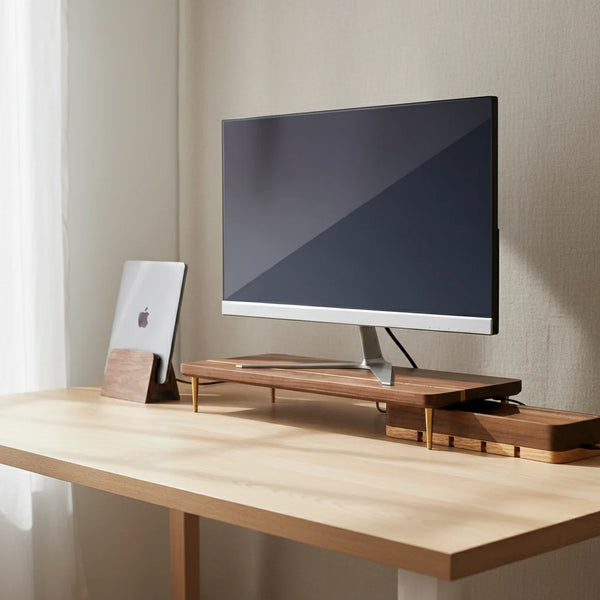
The technology layer is where most home offices get an early upgrade and never re-examine the basics. The single highest-return decision is to elevate the screen so the top edge sits at eye level, which on every laptop and most external monitors means buying a stand. A laptop placed flat on the desk is the most common ergonomic error in 2026 home offices — it forces a 30-degree forward neck flexion for eight hours straight. The fix is mechanical: a monitor stand lifts an external display by 6 cm; a vertical laptop stand handles the closed-laptop clamshell mode if the external monitor is your primary screen. From there, an external keyboard and mouse let the elbows hang at 90 degrees regardless of the screen height. Avoid two side-by-side monitors of equal usage; the constant neck rotation is worse than a single monitor with virtual desktops.
4. Lighting and cable management
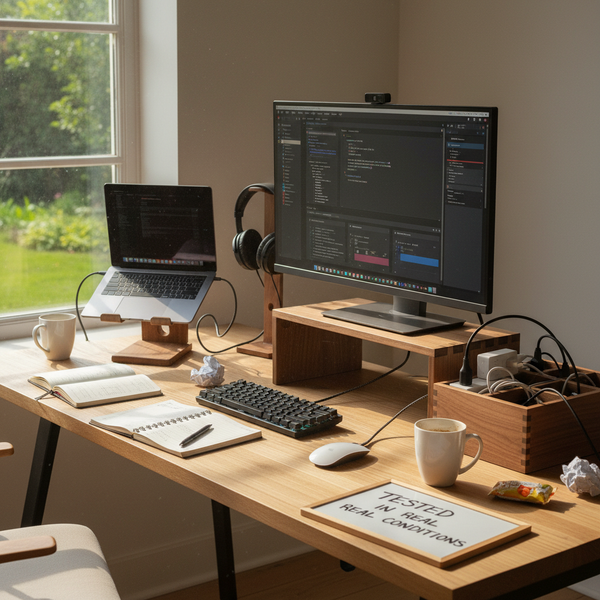
Lighting and cables are usually the last items addressed and the first to quietly degrade the rest of the setup. Position the desk so the strongest window in the room is perpendicular to the screen, not behind it (silhouette your face on every video call) and not facing it (glare on the display all afternoon). Add a small desk lamp on the keyboard side — 400 to 500 lumens, warm 2700–3000 K bulb — to fill in shadow without creating a second reflection on the screen. For cables, the principle is simple: only the cords you plug and unplug daily should reach the work surface. Power strips, USB hubs, and excess cable length belong inside a walnut cord organizer box tucked behind the monitor. A clean cable run keeps the keyboard in place when the laptop charger is yanked out at 6 p.m., and removes the small visual chaos that erodes focus over weeks.
5. Cognitive separation — work in, work out
The fifth layer is the least visible and the one that determines whether you'll still want to work from home in a year. Cognitive separation is the set of small rituals and physical signals that mark when you are working and when you are not. A door that closes is the strongest signal; if you don't have one, a screen or a tall plant that visually breaks the workspace from the living area works almost as well. Put the laptop away at the end of the day — into a drawer or onto a vertical stand that turns it from "open instrument" into "closed object." Don't let work objects drift into the bedroom or onto the couch; the cost shows up as poor sleep months later. A clear start time and a clear end time, marked by physical gestures (open the desk, close the desk), do more for hybrid sustainability than any productivity app.
The wooden accessories that finish a work-from-home office
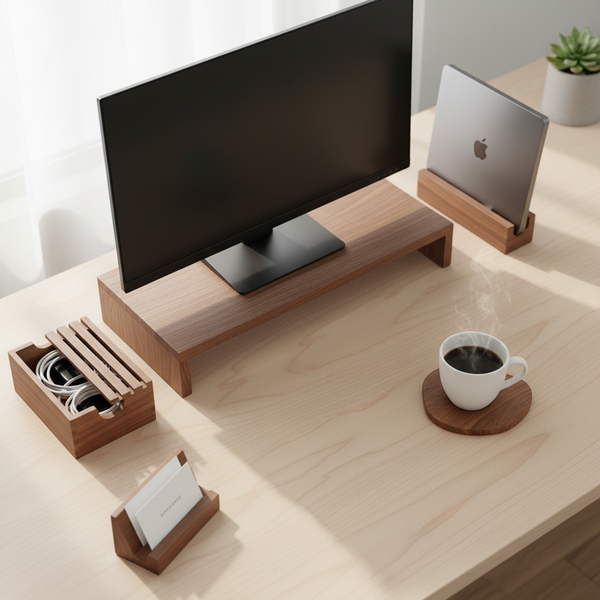
A good home office can be assembled with steel, plastic, or wood — the geometry matters more than the material. We've chosen to make ours in solid walnut because the surfaces in a home office stay in your field of view for forty hours a week, and wood is a warmer presence than aluminum after the first month. These five pieces address the specific failures that show up in most setups: screen too low, laptop in the way, cables on the desk, small clutter drifting onto the mouse pad, height still wrong for tall users. They can be bought in any order, but the first three solve roughly 80% of common ergonomic complaints in a WFH context.


For the broader range, browse the full desk accessories collection and the companion piece on the 5 best wood desk accessories for 2026 for a tighter five-piece roundup.
Comparison table — work-from-home essentials
| Accessory | Price | Solves | Best for |
|---|---|---|---|
| Monitor Stand | $89.00 | Screen too low, neck strain | External 24–32 in display |
| Vertical Laptop Stand | $67.00 | Laptop occupying the desk | MacBook + external monitor |
| Cord Organizer Box | $46.00 | Cable mess | Power strip + USB hub |
| Desk Tray | $42.00 | Small clutter drift | Keys, AirPods, ring |
| Riser Leg | $12.50 | Stand still too low | Tall users (6 ft +) |
Budget decision matrix — what to buy at three price points
A work-from-home office can be done for $500, $1,500, or $3,000. The differences are smaller than they look in the catalog — most of the ergonomic benefit lives in the first $500 — but the differences are real where they matter, especially in the chair.
| Tier | Approx. budget | What to buy first |
|---|---|---|
| Entry | $500 | Used Steelcase or Aeron chair $250–$400, walnut monitor stand $89, decent external keyboard $50, a wired mouse you already have. Use the existing kitchen table or a $80 IKEA desk. |
| Pro | $1,500 | New ergonomic chair $500, solid wood desk 140×70 cm $300, 27 in external monitor $300, monitor stand $89, vertical laptop stand $67, cord organizer $46, desk lamp $80, mech keyboard $120. |
| Premium | $3,000+ | Pro tier + sit-stand desk frame $700, second monitor $400, Herman Miller Aeron new $1,500, full walnut accessories set, dedicated webcam + boom mic $400. Real wood floor or rug under the chair is the often-skipped upgrade that quietly changes the experience. |
Step-by-step — a one-afternoon setup routine
Set aside three hours on a Saturday. Don't try to spread this over a week — it stalls.
1 — Choose the corner (15 min). Walk through your apartment with a notebook. Note natural light, doorway sightlines, electrical outlets, and the loudest neighbors. Pick the corner that scores best on light + outlets first, quiet second.
2 — Empty the surface (10 min). If you're repurposing an existing desk, clear everything onto the floor. Wipe the surface. A blank desk is the only honest starting point.
3 — Place desk and chair (20 min). Position the desk in the corner. Sit at the chair, adjust seat height until elbows hang at 90 degrees. Add a footrest if your feet dangle.
4 — Lift the screen (15 min). Place the monitor stand at arm's length, monitor on top. Top edge at eye level. If you use a laptop only, add a vertical stand + external keyboard.
5 — Place keyboard and mouse (10 min). Directly in front of you, same plane, mouse close to the keyboard. Test for two minutes; adjust.
6 — Route the cables (30 min). Bring power and USB cables to the back edge. Drop excess length and the power strip into a cord organizer box. Only the cables you plug daily should reach the surface.
7 — Set up cognitive separation (60 min). Add a closing ritual: a desk tray for keys at start of day, the laptop into the vertical stand at end of day. If your desk is in a shared room, place a small plant or a freestanding shelf that visually marks the boundary. Sit, type for ten minutes, and notice what's wrong. Adjust.
Common mistakes that undo a work-from-home office
Even a well-built home office quietly degrades over weeks if these mistakes go unchecked. They are the four patterns most often visible when someone says, "I set everything up six months ago and I'm still uncomfortable."
The chair fits the desk, not your body. People buy a chair to match the visual style of the desk, then accept whatever feels acceptable on day one. By month three, the lumbar gap or armrest height that was "fine" has caused a slow accumulation of tension. Re-check the chair every season — feet flat, elbows at 90.
The laptop is still the main screen, six months in. This is the single most common ergonomic error in home offices. A laptop screen at desk height forces forward neck flexion. If you've been doing this for months, your neck has already adapted — and it will adapt back over a few weeks once you elevate the screen.
Cables migrate back onto the desk. Cables don't stay routed; every time you plug a new device in, they creep forward. Once a month, push everything back behind the cord organizer. It's a five-minute hygiene task.
Work objects bleed into the home. The closed laptop ends up on the couch on Sunday, the planner stays on the dinner table, the second monitor's blue light glows from across the bedroom at 11 p.m. Put work things back into the work corner at end of day — the small effort prevents a much larger erosion.
FAQ — work-from-home office setup
1 — What do I need to set up a work-from-home office? At minimum: a chair you can sit in for eight hours, a desk that doesn't wobble, a screen raised to eye level, an external keyboard and mouse if you use a laptop, and a way to manage cables. Everything else is optimization. Expect to spend $400–$600 if buying smart, or up to $3,000 for a premium setup.
2 — How much should I spend on a home office? For most knowledge workers, the sweet spot is $1,000–$1,500. Below $500 you start sacrificing chair quality, which compounds physically over years. Above $2,000, you're paying for marginal returns — a slightly nicer chair, a sit-stand desk. The chair is where to invest first.
3 — Where should I put my desk in a small apartment? Pick the corner with the best natural light and an electrical outlet within 2 m. Avoid the line of sight from the front door (visitors looking straight at your screen) and the wall opposite the bed (work intrudes on sleep). In a studio, the bedroom corner farthest from the bed usually beats the kitchen-adjacent wall.
4 — Do I need two monitors to work from home? Not necessarily. A single 27 in monitor at eye level, plus a laptop on a vertical stand in clamshell mode, covers most knowledge-work tasks. Two side-by-side monitors create constant neck rotation. If you do need a second display, place it secondary at an angle, not centered.
5 — What's the best chair for working from home? A used Herman Miller Aeron, Steelcase Leap, or Haworth Zody at $300–$500 from a secondhand office furniture dealer is almost always a better investment than a new $500 chair. The build quality of mid-2000s commercial chairs holds up for fifteen years.
6 — How do I keep work from bleeding into my home life? Three habits: a hard start and end time signaled by physical gestures (open the desk, close the laptop into a stand), no work objects in the bedroom, and a visual or physical boundary between the work area and the living area — a door, a screen, or a tall plant.
7 — Is a standing desk worth it for working from home? Only if you actually alternate between sitting and standing every 30–45 minutes. Most people set the sit-stand desk once and never raise it; that's a $700 fixed desk. If you know you won't change positions, save the money.
8 — How can I make a small home office feel less cramped? Lift everything off the desk surface that can be lifted — laptop on a vertical stand, cables into a cord organizer, small items into a desk tray. Visual clutter shrinks the felt size of a room; vertical organization expands it.
9 — What lighting do I need for a home office? A perpendicular window for daylight, plus a 400–500 lumen desk lamp on the keyboard side with a warm 2700–3000 K bulb for evening. Avoid placing the desk facing or backing onto the strongest window — perpendicular is the rule.
10 — How do I look professional on video calls from home? Light your face from the front (window facing you, not behind you). Frame the camera at eye level — laptops on the desk frame you from below in an unflattering angle, but a monitor stand raising the laptop or webcam fixes this for free. A plain wall behind you is more professional than a curated bookshelf.
11 — How often should I take breaks when working from home? Stand and walk for two to three minutes every 45–60 minutes. Apply the 20-20-20 rule for the eyes: every 20 minutes, look at something 20 feet away for 20 seconds. The pattern matters more than the exact number — regular short interruptions beat one long lunch break.
Approfondir — connected guides for your home office
This article links into our broader 2026 desk series. For a deeper read on the body mechanics, start with the pillar guide on ergonomic desk setup. For inspiration and layout patterns, see home office setup ideas that actually work. For small-apartment specifics, read the best office desk accessories for small spaces. For the ergonomic version of this article focused on the body rather than the room, see how to set up an ergonomic workspace at home.
Closing — start with the corner, then the screen
If you take one decision from this article, take this: choose the corner before you buy anything. The corner determines the desk, the desk determines the chair, the chair determines whether the setup will still feel good in a year. Once the corner is settled, lift the screen — a monitor stand is the single highest-return $89 you'll spend in your home office. Everything else is refinement on top of those two decisions.
When you're ready, browse the desk accessories collection for the pieces in this guide, or start with the walnut monitor stand — the one accessory that, on its own, will change the way you finish a workday at home.