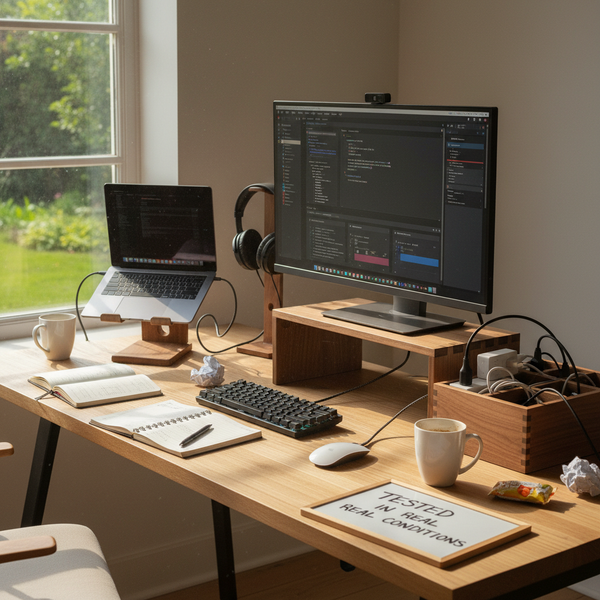
Most people who spend eight hours a day at a desk are quietly accumulating small injuries — a stiff neck on Tuesday, a sore wrist on Thursday, a dull lower-back ache that shows up by Friday afternoon and disappears over the weekend, only to return on Monday. The cause is rarely a single dramatic event. It's a desk that asks the body to compensate, hour after hour, for furniture and equipment placed where they happen to fit rather than where they belong.
An ergonomic desk setup is not a luxury or a productivity hack. It's the baseline cost of doing screen-based work without paying the bill in slow physical decline over five or ten years. The good news is that fixing it does not require a $2,000 chair or a sit-stand desk. It requires understanding a handful of principles, applying them in order, and choosing a few accessories that solve specific problems — screen too low, laptop on the desk, cables tangled around the wrists, no place for the things you actually use.
This guide is the pillar reference for the eleven companion articles in our 2026 desk series. It covers what an ergonomic desk setup actually is, the five principles that matter most, the five wooden accessories from our studio that solve the most common pain points, a comparison table, a decision matrix, a step-by-step setup routine, the mistakes that quietly waste good intentions, and an FAQ built from the questions readers most commonly ask. Whether you're starting from a kitchen-counter laptop or upgrading a dedicated home office, you'll find the order of operations here.
What is an ergonomic desk setup
An ergonomic desk setup is a workstation arranged so that the equipment fits the body, instead of asking the body to fit the equipment. In practical terms, that means the top of the screen sits at or slightly below eye level, the elbows rest near a 90-degree angle when typing, the wrists stay neutral rather than bent up or down, the feet are flat on the floor or a footrest, and the lower back is supported by the chair. Everything you use frequently — keyboard, mouse, notebook, phone — is within arm's reach without forcing a twist or a stretch. The goal is to make a neutral, upright posture the path of least resistance. When the setup is right, you stop thinking about it. When it's wrong, your body reminds you by the end of the day.
Why an ergonomic desk setup matters in 2026
Remote and hybrid work pushed millions of desk jobs into rooms that were never designed for eight-hour workdays — kitchen tables, guest beds, folding desks in living-room corners. According to occupational-health reviews summarized by the U.S. National Institute for Occupational Safety and Health (NIOSH) and Cornell's Human Factors and Ergonomics Research Group, the prevalence of musculoskeletal complaints — neck, shoulder, lower back, and wrist — climbed sharply during the 2020–2023 home-office shift and has not fully receded. The economic argument is also clear: a 2024 BSI Group review estimated that ergonomic-related lost productivity in office workers costs employers between $1,200 and $2,500 per person per year, most of it preventable. In 2026, with hybrid work now permanent for a large share of knowledge workers, the desk you sit at four days a week is no longer a temporary arrangement. It's the room your body spends more waking hours in than any other except, possibly, your bedroom. Treating it as worth $200 of thoughtful accessories is one of the highest-return decisions you can make about your daily comfort.
The 5 essential principles of an ergonomic desk setup
Five principles cover roughly 90% of the benefit you can get from rearranging a desk. They are listed in the order you should apply them — fixing the screen first, then the chair, then the keyboard plane, then the lighting, then the accessories that finish the job.
1. Screen height — top of the screen at eye level
When the top edge of your monitor sits at or just below eye level, your neck stays in a neutral position. When the screen is lower — and on a laptop placed directly on a desk, it always is — the neck flexes forward by 15 to 30 degrees, and the muscles between your shoulder blades work overtime to hold your skull in place. Over an eight-hour day that translates to roughly 200 to 400 additional pounds of cumulative load on the cervical spine. The fix is mechanical: lift the screen. A monitor riser or laptop stand brings the top of the display into the eye-level zone, and the neck immediately drops back into neutral. If you use a laptop as your only display, an external keyboard and mouse become non-negotiable, because typing on the laptop once it's elevated would put the keyboard above elbow height.
2. Chair and lumbar support — feet flat, back supported
The chair is the foundation. Adjust the seat height first so that your feet rest flat on the floor and your thighs sit roughly parallel to the ground — knees at about a 90-degree angle, no pressure on the back of the thigh from the seat edge. Then check that the lumbar curve of the chair meets the small of your back; if it doesn't, a rolled towel or a small pillow placed at lumbar height will do the same job as a $400 ergonomic chair for the first year. Armrests, when present, should be low enough that your shoulders stay relaxed — never hunched up to meet them. If your feet don't reach the floor when the seat is high enough to clear the desk, a footrest (or a stack of books) is the patch.
3. Keyboard and mouse position — elbows at 90 degrees, wrists neutral
The keyboard and mouse should sit at a height that lets your elbows hang naturally at roughly a 90-degree angle, with the forearms parallel to the floor. The wrists should stay straight — not bent upward to reach the keys, not bent downward, not twisted outward to reach a mouse placed too far to the side. The most common violation is a keyboard that's too high, which forces the shoulders up and the wrists into extension. If your desk is fixed at standard height (about 75 cm / 29.5 in) and feels too high, raise the chair and add a footrest rather than lowering the desk. Place the mouse on the same plane as the keyboard, as close to the keyboard as possible, so the shoulder doesn't have to reach.
4. Lighting and screen glare — ambient light, no reflections
A screen that competes with a bright window behind it or an overhead light reflecting off the glass forces the eyes to work harder, and the body compensates by tilting the head to find a clearer view. That tilt undoes whatever you fixed in step one. Position the screen perpendicular to the strongest window in the room — not facing it, not backed up to it — so direct sunlight neither hits the screen nor sits behind it in your peripheral vision. A small desk lamp on the keyboard side, around 400 to 500 lumens with a warm 2700K to 3000K bulb, fills in shadow without creating a second glare source. In the evening, dim the ambient light rather than the screen alone; high screen brightness against a dark room is hard on the eyes after about twenty minutes.
5. Accessories that finish the job — cables, laptop, paperwork
Once the big four are right, the small frictions decide whether the setup stays correct or quietly degrades over a few weeks. Cables that snake across the desk pull the keyboard out of position when something is unplugged. A laptop laid flat next to the main monitor encourages you to lean over and look down at it. A pile of paper to the right of the mouse gradually shoves the mouse outward until the shoulder is reaching. The accessories in the next section exist to solve exactly these small failures — vertical storage for the laptop so it's out of the way when closed, a closed box for the cables so they stay routed, a riser leg if your existing monitor stand isn't tall enough, a coaster so a single coffee cup doesn't claim a third of your usable surface.
The 5 wooden accessories worth keeping on an ergonomic desk
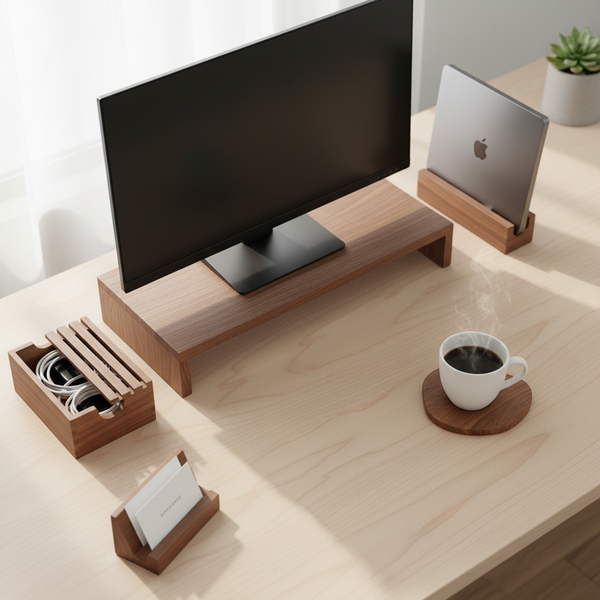
These five items were selected from our desk accessories collection because each one solves a specific ergonomic failure listed above — screen too low, laptop in the way, cables crossing the work surface, mouse drift. They are not the only options, but they share a logic: solid walnut, restrained design, and a clear job.


Comparison table
| Accessory | Price | Material | Solves | Best for |
|---|---|---|---|---|
| Walnut Monitor Stand | $89.00 | Solid walnut | Screen too low, neck strain | External 24–32 in display |
| Additional Riser Leg | $12.50 | Solid walnut | Stand still too low | Tall users (6 ft +) |
| Vertical Laptop Stand | $67.00 | Solid walnut | Laptop in the way, clamshell | MacBook + external display |
| Cord Organizer Box | $46.00 | Solid walnut | Cable mess, dust on cords | Power strip + USB hub |
| Business Card Holder | $24.00 | Solid walnut | Card drift onto work zone | Anyone giving cards weekly |
Decision matrix — what to buy first
You don't need all five accessories at once. Buy in the order your body is complaining loudest.
| If you have… | Buy first |
|---|---|
| Neck stiffness by 3 pm | Walnut Monitor Stand |
| A laptop as your only screen | Vertical Laptop Stand + external keyboard |
| Tangle of cables on the desk | Cord Organizer Box |
| Tall frame (6 ft +) and stand still too low | Additional Riser Leg |
| Cards, post-its, small clutter migrating to mouse zone | Business Card Holder |
Step-by-step setup — a one-hour routine
Set a timer for sixty minutes and go through these steps in order. Don't skip ahead — each step's outcome is the input to the next.
1 — Empty the desk (5 min). Clear everything off the work surface and onto a chair or the floor. Wipe the desk. Working from a blank surface is the only way to see what you actually use versus what just lives there.
2 — Place the chair (5 min). Sit. Adjust the seat height until your feet are flat on the floor and your thighs are parallel to the ground. If your chair has a tilt, set it neutral or slightly forward. If a lumbar pillow or rolled towel is needed at the small of your back, add it now.
3 — Place the monitor (10 min). Set the screen at arm's length (roughly 50–70 cm / 20–28 in from your eyes). The top edge should be at eye level. If your screen is too low, put it on a monitor stand — and if it's still too low because you're tall, add a riser leg. Tilt the screen back about 10–20 degrees so the bottom edge is slightly closer to you than the top.
4 — Place the laptop, if you have one (10 min). If the laptop is your only screen, accept that you'll need an external keyboard and mouse so you can elevate the laptop. If you have an external monitor, put the laptop on a vertical stand and run it closed (clamshell mode). The goal is a single screen at eye level, not two screens at two different heights.
5 — Place keyboard and mouse (10 min). They go directly in front of you, on the same plane, with the mouse as close to the keyboard as your hand size allows. Elbows at roughly 90 degrees, wrists straight. If your desk is too high, raise the chair and add a footrest; don't lower the desk.
6 — Route the cables (15 min). Bring power and USB cables to the back edge of the desk. Drop the excess length and the power strip into a cord organizer box. Only the cables you plug and unplug daily should reach the work surface.
7 — Final pass (5 min). Put back only what you use every day — notebook, pen, water bottle, one card holder. Everything else stays in a drawer. Sit down, type for two minutes, and notice what feels wrong. Adjust.
Common mistakes that quietly undo an ergonomic setup
Even a well-built ergonomic desk degrades over a few weeks if any of these four mistakes are present. They're worth checking once a month.
Laptop flat on the desk as the main screen. This is the single most common ergonomic error in 2026 home offices. A laptop screen at desk height forces a 30-degree neck flexion for eight hours. Either raise the laptop and add an external keyboard, or accept that you've designed yourself a future neck problem.
Monitor placed off to one side. A screen that isn't directly in front of you forces a constant low-grade neck rotation. If you have two monitors, place the one you use most often centered, and the secondary one at an angle to the side — not the other way around.
Mouse drifted outward over time. As paper, mugs, and small objects accumulate on the desk, the mouse migrates outward and the shoulder starts reaching. Every Monday, push the mouse back inward toward the keyboard until they're nearly touching.
Chair never re-adjusted after someone else sat in it. If anyone else uses your chair — a partner, a kid — they'll change the height. Re-set seat height before you start work, not three hours in when your shoulders are already complaining.
FAQ — ergonomic desk setup
1 — What is the most important element of an ergonomic desk setup? Screen height. The top of the screen should sit at or just below eye level. A neutral neck position cascades into a neutral upper back, which cascades into shoulders that don't have to hold a forward head all day. Fix the screen first.
2 — How high should my monitor be exactly? The top edge of the screen should be at the height of your eyes when you sit upright. For most people, that means the monitor needs to be 10–15 cm (4–6 in) higher than where it sits on a bare desk. A walnut monitor stand typically adds 6 cm of height; a riser leg on top adds another 4 cm if you're tall.
3 — Can I have an ergonomic setup with just a laptop? Yes, but only if you add an external keyboard and mouse and elevate the laptop on a stand. A laptop alone forces you to choose between a neutral neck (screen up) and neutral wrists (keyboard down). Splitting them with external peripherals is the only way to get both.
4 — How far should my screen be from my eyes? Roughly an arm's length — 50 to 70 cm (20 to 28 in) — measured from your eyes to the surface of the screen. If you find yourself leaning forward to read text, increase the font size before moving the screen closer.
5 — Should I use a standing desk? A sit-stand desk helps if you actually alternate between sitting and standing every 30–45 minutes. If you set it once and never move it, it's just a more expensive fixed desk. The ergonomic principles in this guide apply to both modes.
6 — Where should my mouse be relative to the keyboard? On the same plane, as close to the keyboard as your hand size allows. The shoulder should not have to reach for the mouse. If it does, your mouse has drifted — slide it back in.
7 — Are wooden desk accessories actually ergonomic, or just decorative? Both, if chosen for function. A solid walnut monitor stand does the same ergonomic job as a steel one — it elevates the screen. The wood adds visual warmth and acoustic damping (less keyboard echo), but the ergonomic value comes from the geometry, not the material.
8 — How often should I take breaks from the desk? The widely cited 20-20-20 rule for eyes: every 20 minutes, look at something 20 feet away for 20 seconds. For posture, stand and walk for two minutes every 45–60 minutes. The exact number matters less than the pattern: regular short interruptions beat one long break at lunch.
9 — Do I need a footrest? Only if your feet don't rest flat on the floor when your chair is at the height required for neutral elbows at the keyboard. For shorter users, a footrest is essential. For average-height users with an adjustable chair, it's rarely needed.
10 — How do I handle two monitors ergonomically? Place the monitor you use most often directly in front of you, at eye level, screen centered on your nose. The second monitor goes immediately next to it at a slight angle. Do not split your time 50/50 between two side-by-side monitors with a gap in the middle — that forces continuous neck rotation.
11 — Can wooden accessories handle daily use, or do they wear out? Solid hardwood — walnut, beech, oak — handles daily desk use indefinitely if it's kept dry and given a light oil treatment once or twice a year. The walnut pieces in our desk accessories collection are oiled at our studio before shipping and ship with a small care card.
Approfondir — 11 connected guides in this cluster
This pillar article links to eleven companion guides on specific aspects of the ergonomic desk setup, each one going deeper on a single topic. Use them in any order, after this one.
- (Pair 2) The right monitor height for a healthy neck — coming soon
- (Pair 3) MacBook clamshell mode — when it makes sense — coming soon
- (Pair 4) Cable management for minimalist desks — coming soon
- (Pair 5) Lighting for screen work — choosing a desk lamp — coming soon
- (Pair 6) Chair vs. cushion — when a $400 chair is overkill — coming soon
- (Pair 7) The 20-20-20 rule and other break patterns — coming soon
- (Pair 8) Standing desk: worth the upgrade in 2026? — coming soon
- (Pair 9) Keyboard tray vs. raising the chair — coming soon
- (Pair 10) Footrests, lumbar pillows, wrist rests — what works — coming soon
- (Pair 11) Ergonomic accessories for small apartments — coming soon
- (Pair 12) Maintenance — keeping a wooden desk setup looking new — coming soon
In the meantime, browse the desk accessories collection for the pieces referenced in this guide, or read the companion piece on the 5 best wood desk accessories for 2026 for a tighter five-piece roundup.
Closing — start with the screen
If you take only one thing from this guide, take this: raise the screen. A monitor stand is a $12 to $89 fix that removes the largest single source of neck and upper-back pain in screen work. Everything else — the chair, the keyboard plane, the lighting, the cables — is worth doing, but the screen is the first lever, and the one whose effect you'll feel by the end of the first day.
When you're ready, browse the full desk accessories collection for the pieces in this guide, or start with the walnut monitor stand — the single highest-return item we make for an ergonomic desk setup.